

When it happens, act on it
Define rules that watch for specific events and fire automatically. Filter by properties, use templates with variables, and route to Slack, Discord, or any webhook.
- Event-based rules
- Property filters
- Template variables
- Multi-integration routing
What are notification rules?
Notification rules are the trigger layer in OpenPanel. They define when something should happen - and integrations define where it goes.
A notification rule has three parts:
- Events - which events to watch for (e.g.
screen_view,purchase,signup) - Filters - optional property conditions that narrow the match (e.g. path starts with
/onboardingand ends with/verify) - Integrations - which connected services should receive the notification when the rule fires
You can also write a template using variables like {{country}}, {{browser}}, or any event property. The template is rendered with real values when the notification fires, so your Slack message or webhook payload contains the exact context you need.
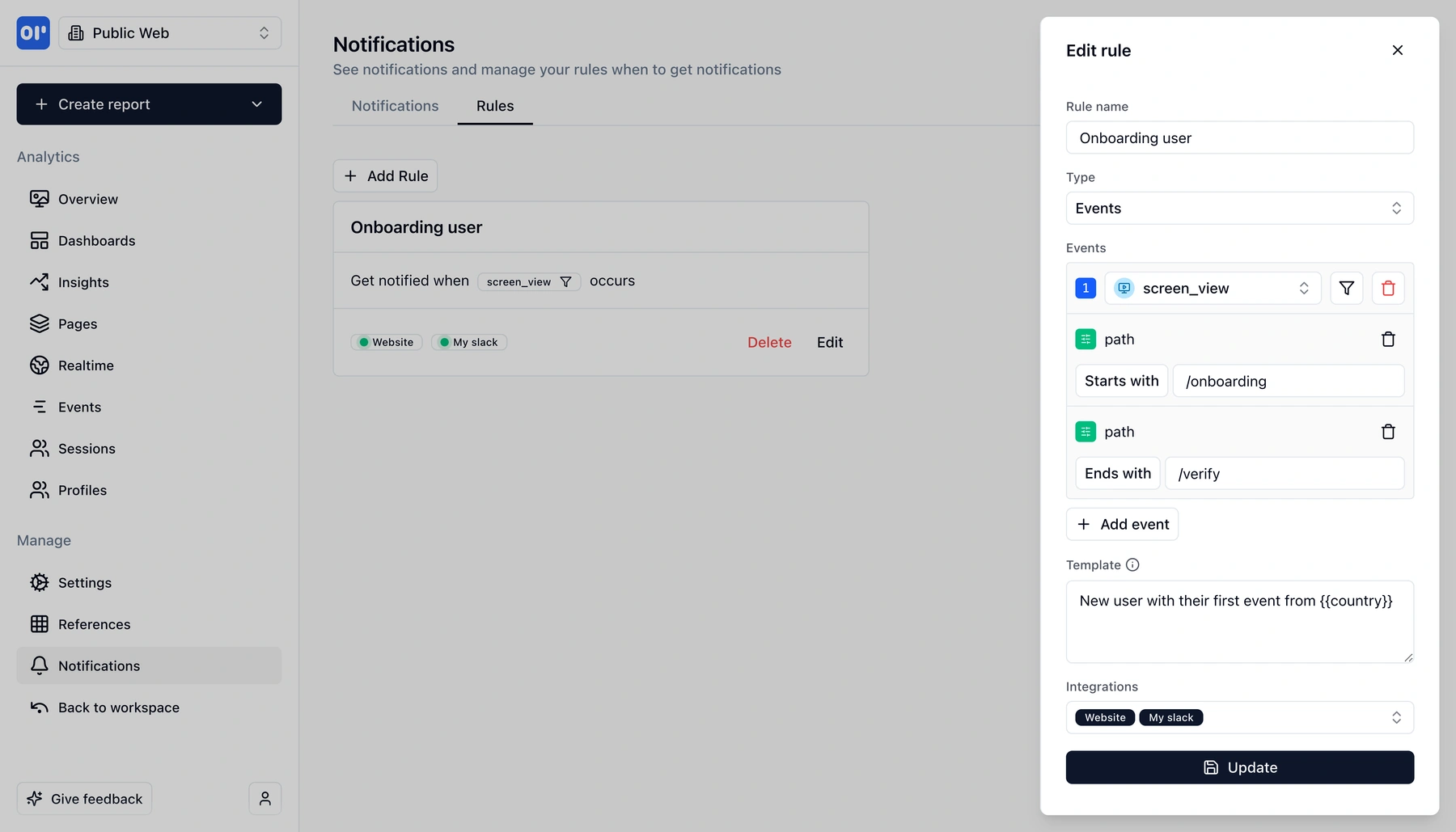
Here's a concrete example: you want to know when new users visit your onboarding verification page. You create a rule that:
- Watches for
screen_viewevents - Filters where path starts with
/onboardingand ends with/verify - Uses the template "New user with their first event from {{country}}"
- Routes to your Slack workspace and a webhook integration
Now every time someone hits that page, your team sees a message in Slack with the user's country, and your webhook fires for any downstream automation.
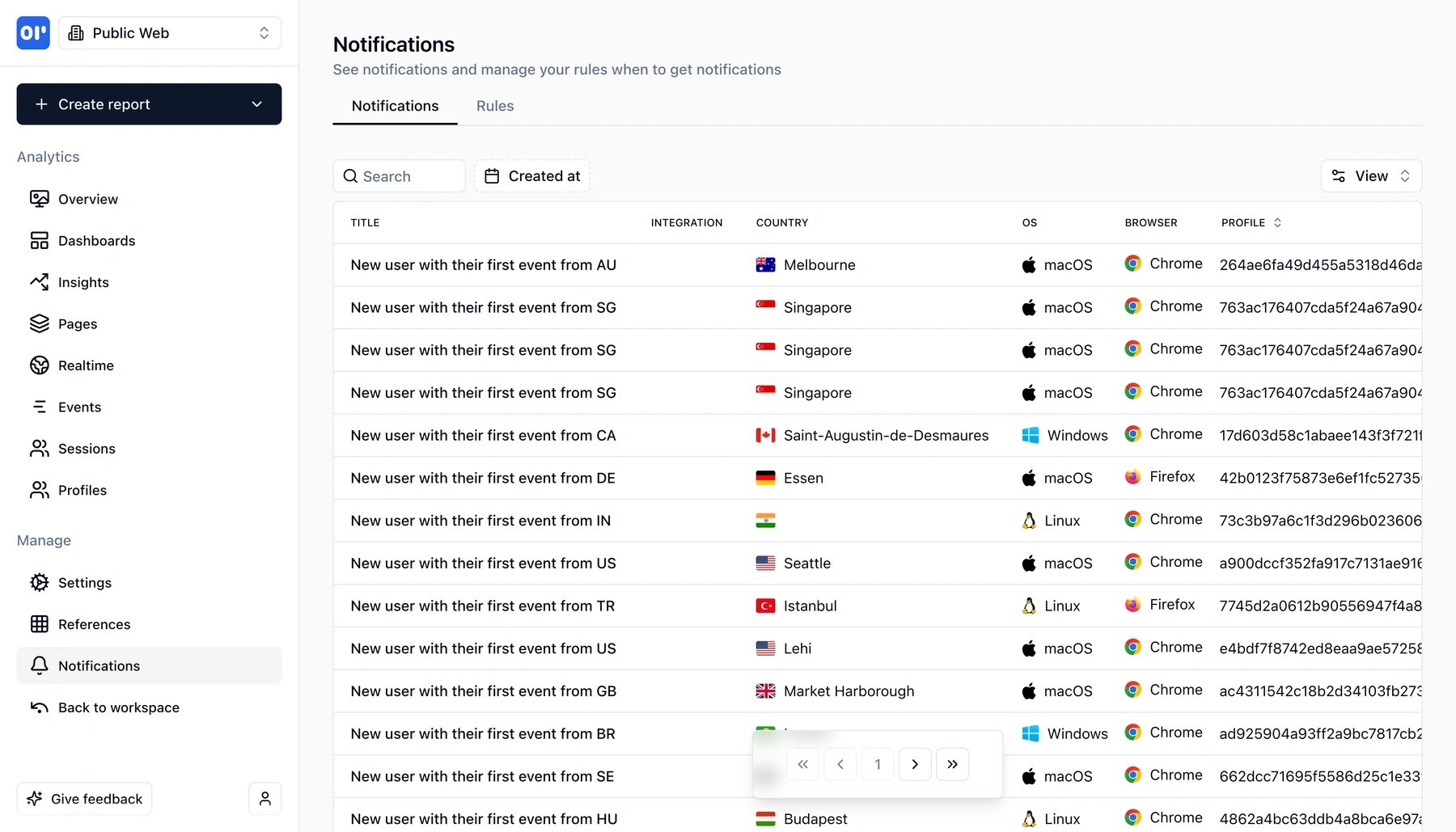
The notifications page in OpenPanel shows a feed of every notification that fired - searchable, sortable by date, and showing the integration, country, OS, browser, and profile for each one. You can see exactly what happened and when.
Notification rules connect the events you track to the actions you take. With integrations, they let OpenPanel act on your data instead of just storing it.
What you can do with notifications
From simple alerts to complex event-driven workflows - rules give you full control.
Event-based triggers
Choose which events a rule watches for - screen_view, purchase, signup, or any custom event. A single rule can watch for one event type and fire on every match.
Property filters
Narrow rules with property conditions. Filter by path, country, device, or any event property using operators like 'starts with', 'ends with', 'equals', and more. Stack multiple filters to match exactly the events you care about.
Template variables
Write notification templates with {{variable}} syntax. Use any event property - {{country}}, {{path}}, {{browser}}, {{os}}, or custom properties. Templates are rendered with real values when the notification fires.
Multi-integration routing
Attach multiple integrations to a single rule. Fire a Slack message and a webhook at the same time. Mix and match integrations across rules however you want.
Notification feed
Every fired notification is logged in a searchable feed. See the title, integration, country, OS, browser, and profile for each notification. Filter and sort to find exactly what you need.
Rules management
Create, edit, and delete rules from a dedicated Rules tab. See at a glance which events each rule watches, what filters are applied, and which integrations are attached.
How notification rules work
Rules are simple: define the trigger, write the message, pick the destinations.
Choose the event type
Select which event the rule should watch - screen_view, purchase, signup, or any custom event you track. The rule will evaluate every incoming event of that type.
Add property filters
Optionally narrow the rule with property conditions. For example, filter where path starts with /onboarding and ends with /verify. Only events matching all filters will trigger the rule.
Write a template
Write the notification message using {{variable}} placeholders. When the rule fires, variables are replaced with real values from the event - e.g. "New user with their first event from {{country}}" becomes "New user with their first event from US".
Attach integrations
Select one or more integrations to receive the notification - Slack, Discord, webhook, or any combination. Each integration will be triggered simultaneously when a matching event arrives.
How teams use notifications
From simple team alerts to event-driven automation - notifications make analytics actionable.
New user alerts
Get notified in Slack whenever a new user signs up. Include their country, source, or any property in the message. The whole team sees new signups in real time without checking a dashboard.
Onboarding monitoring
Set up rules that fire when users hit key onboarding milestones - account creation, first feature use, verification. Know immediately when someone gets stuck or completes the flow.
Revenue and purchase alerts
Fire a notification on every purchase event. Include the amount, plan, or product in the template. Route to Slack for celebration and to a webhook for CRM updates or fulfillment triggers.
Error and regression detection
Watch for error events or unexpected patterns. Get alerted when error rates spike for a specific page or feature, so you can respond before users complain.
Related features
Explore more capabilities that work together with this feature.
Integrations
Integrations are the destinations for notifications. Connect Slack, Discord, or webhooks, then attach them to rules.
Event tracking
Notification rules are built on the events you track. The more events you send, the more precise your rules can be.
Funnels
Trigger notifications when users complete a funnel - combining step-by-step analysis with real-time action.
Frequently asked questions
Common questions about notification rules in OpenPanel.
Ready to get started?
Track events in minutes. Free 30-day trial, no credit card required.
Set up your first notification rule